
A complete view of your financial activity.
Oxy Finance brings income, expenses, invoices, accounts and investments together in a clear bilingual Windows application.
Purpose and audience
Oxy Finance is designed for individuals, families, students, self-employed workers and small businesses that want organized financial records without unnecessary complexity.
| Usage mode | Main features |
|---|---|
| Personal finances | Income, expenses, investments, dashboard and basic reporting. |
| Personal + Self-employed | Personal tools plus GST/QST, invoicing, customer records and advanced reports. |
Plan requirement: professional features, including “My business,” require Oxy Finance Pro.
Getting started
Complete these steps when opening Oxy Finance for the first time.
- 1Set up your identity and accounts
Open Settings, enter your identity and create at least one financial account.
- 2Add customers, suppliers and categories
Prepare reusable records before entering transactions.
- 3Record your first transaction
Add income, an expense or an invoice to confirm the setup.
- 4Review the dashboard
Check totals, account balances and available reports.
- 5Create a backup
Select a backup location in Settings and export your data.
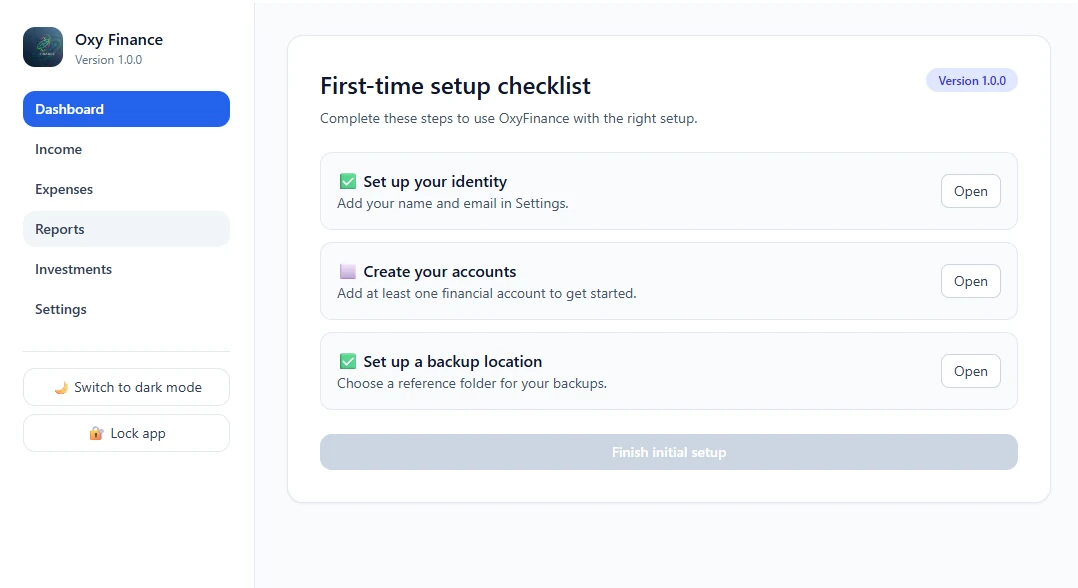
Dashboard
The dashboard provides an immediate summary of current financial activity.
| Indicator | What it shows |
|---|---|
| Income | Previous, current and upcoming monthly income. |
| Pending income | Issued invoices that have not been paid. |
| Expenses | Comparison across consecutive months. |
| Balance by account | Current balance for every account displayed on the dashboard. |
| Upcoming payments | Payments due within the next 15 days. |
Income
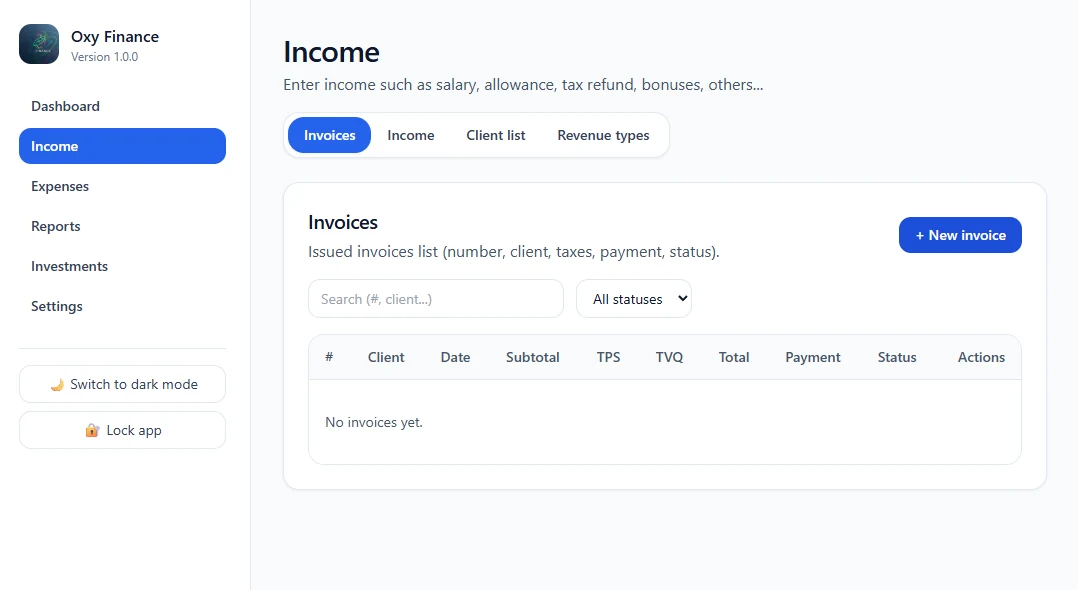
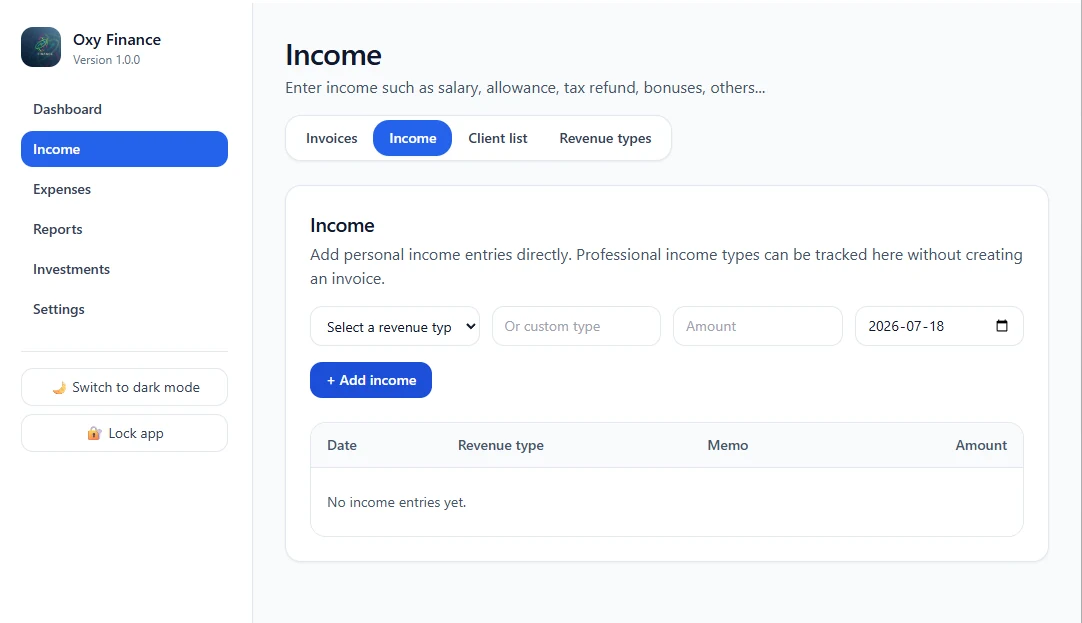
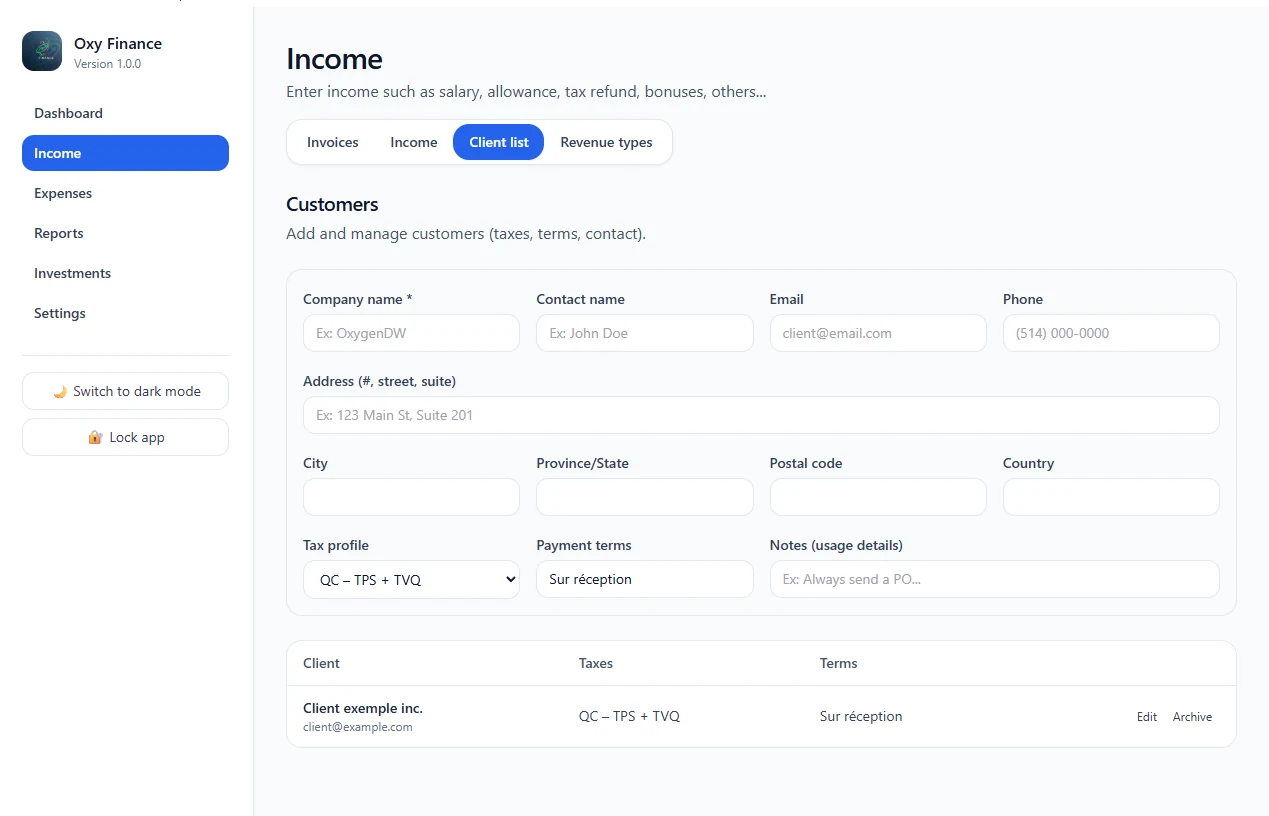
The Income section contains invoices, direct income entries, customers and reusable revenue types.
Invoices
- Automatic numbering
- Open and Paid statuses
- PDF printing and export
- Customer assignment
Direct income
- Salary and professional income
- Refunds and interest
- Reusable or custom revenue types
Customers
- Contact details
- Tax profiles and payment terms
- Invoice history
Revenue types
- Personal and professional categories
- Optional unit prices
- Use in filters and reports
Expenses
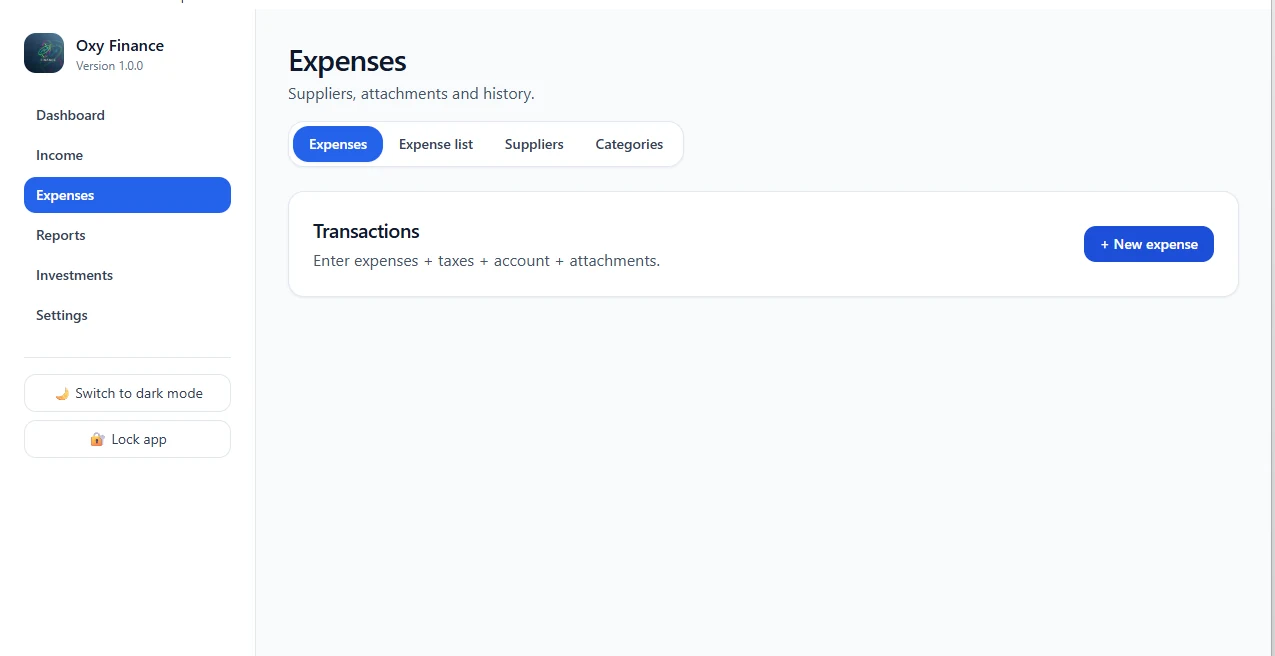
Record outgoing money, classify transactions and keep supporting documents together.
Entry
- Amount with or without GST/QST
- Supplier and category
- Receipts and invoice attachments
- Account, date and payment method
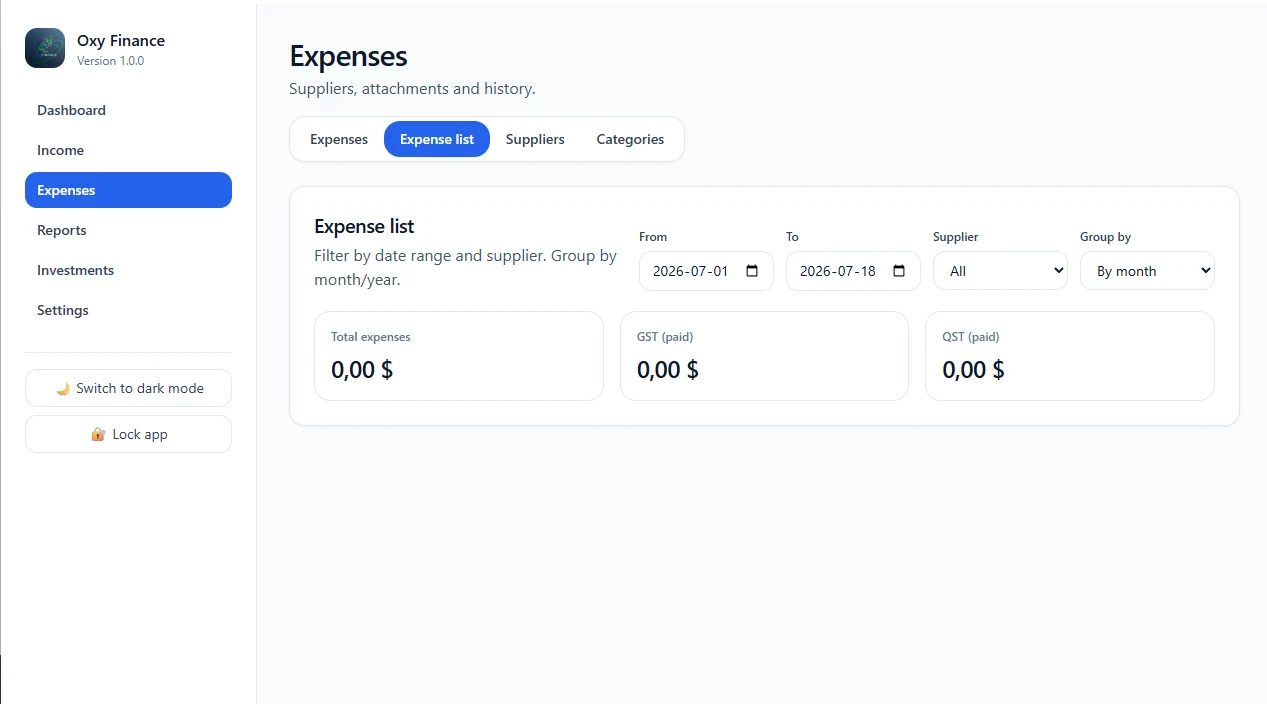
Expense list
- Date and supplier filters
- Monthly or annual grouping
- Tax and total summaries
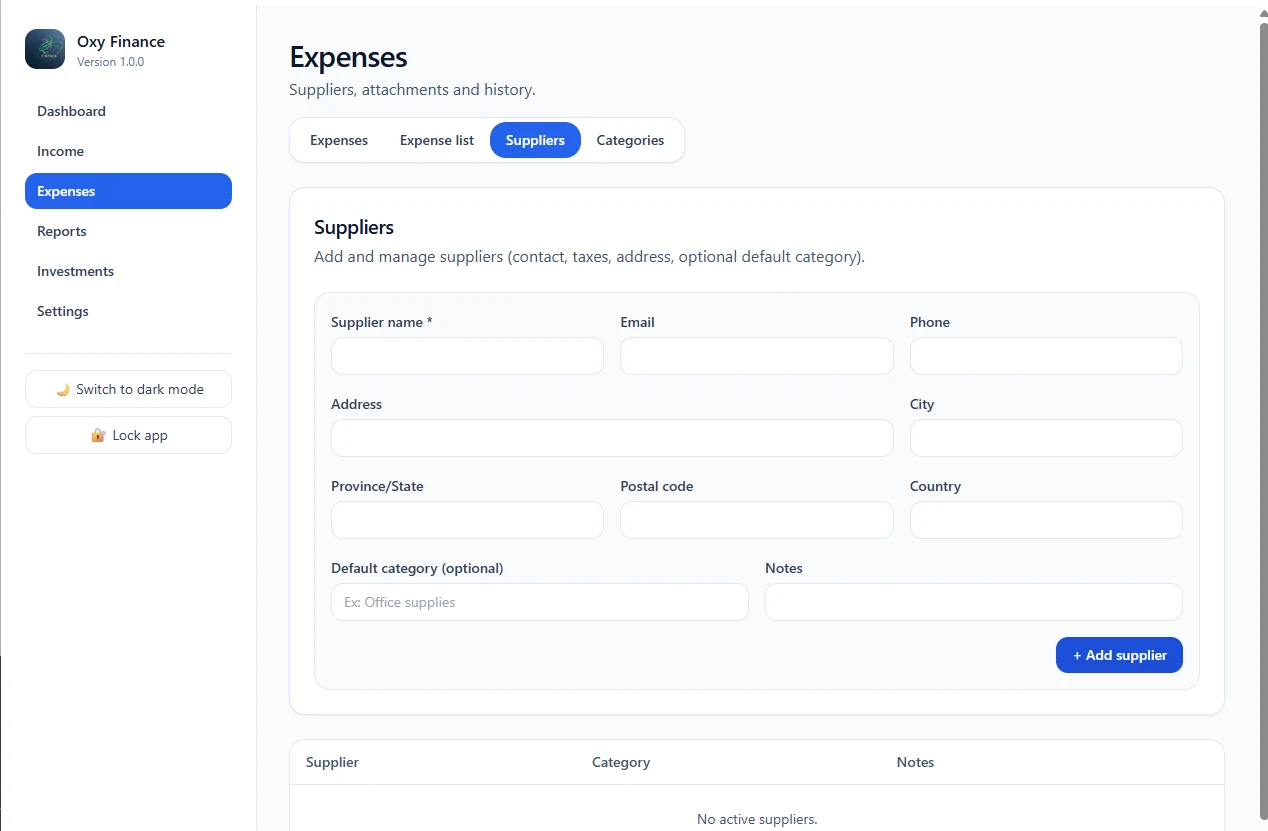
Suppliers
- Contact and address information
- Optional default category
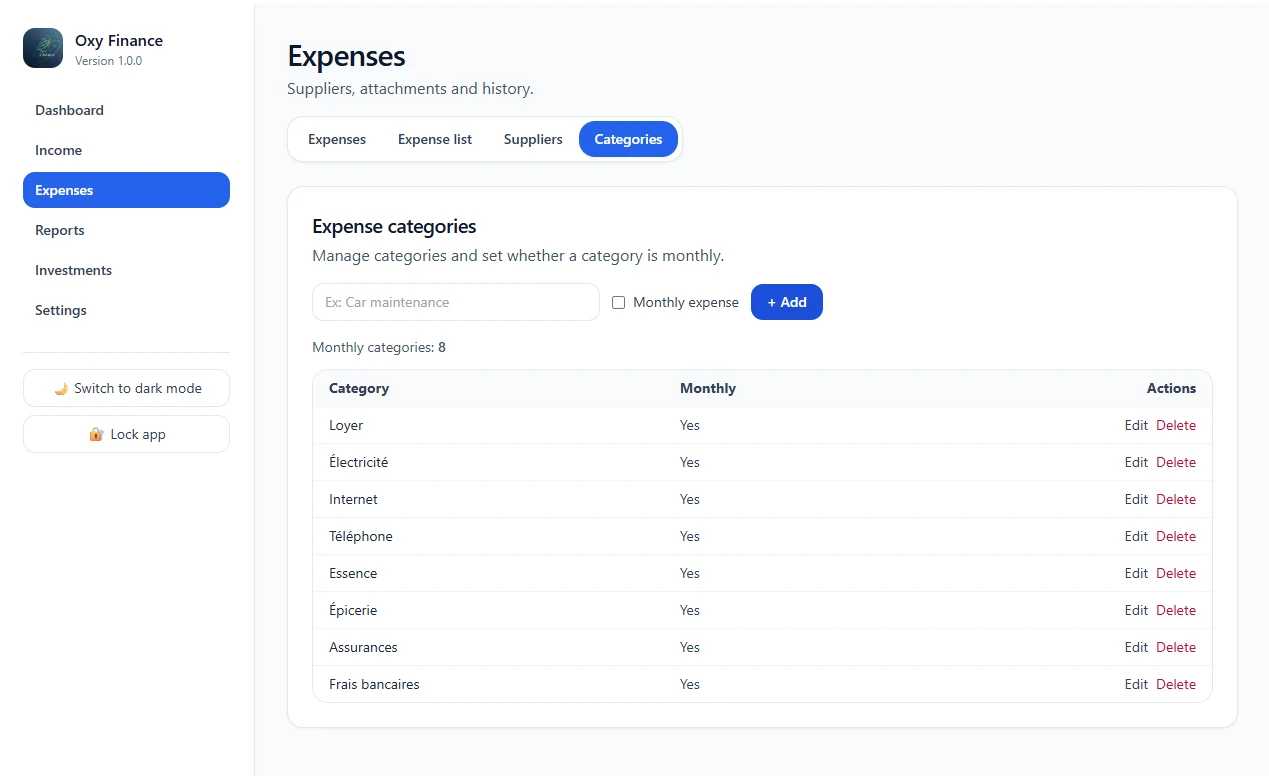
Categories
- Monthly recurring categories
- One-time and custom categories
Investments
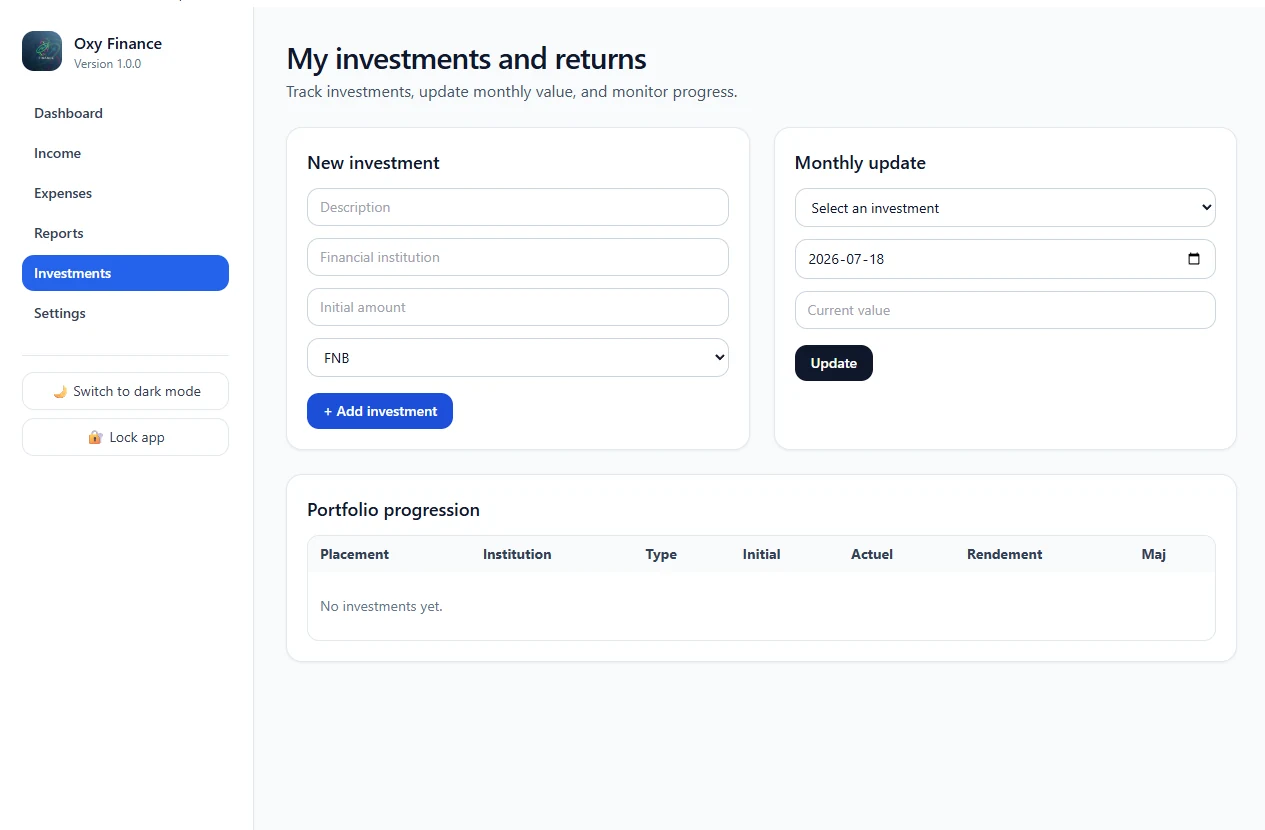
Add investments, enter their current value each month and review portfolio progression.
- Description, institution, type and initial amount
- Monthly current-value updates
- Gain or loss calculation
- Portfolio history
Important: values are entered manually. Oxy Finance does not connect to brokerage platforms.
Settings
| Setting | Purpose |
|---|---|
| Usage mode | Choose Personal finances or Personal + Self-employed. |
| Language | Switch the application between English and French. |
| My identity | Name, role and contact information. |
| My business | Legal details, GST/QST, billing address and logo. Pro only. |
| Billing | Invoice numbering, logo and payment terms. |
| Accounts | Bank accounts, cards, opening balances and default account. |
| Backup & import | Export and restore application data. |
| Subscription | Review plan and Microsoft Store subscription information. |
Reports and analysis
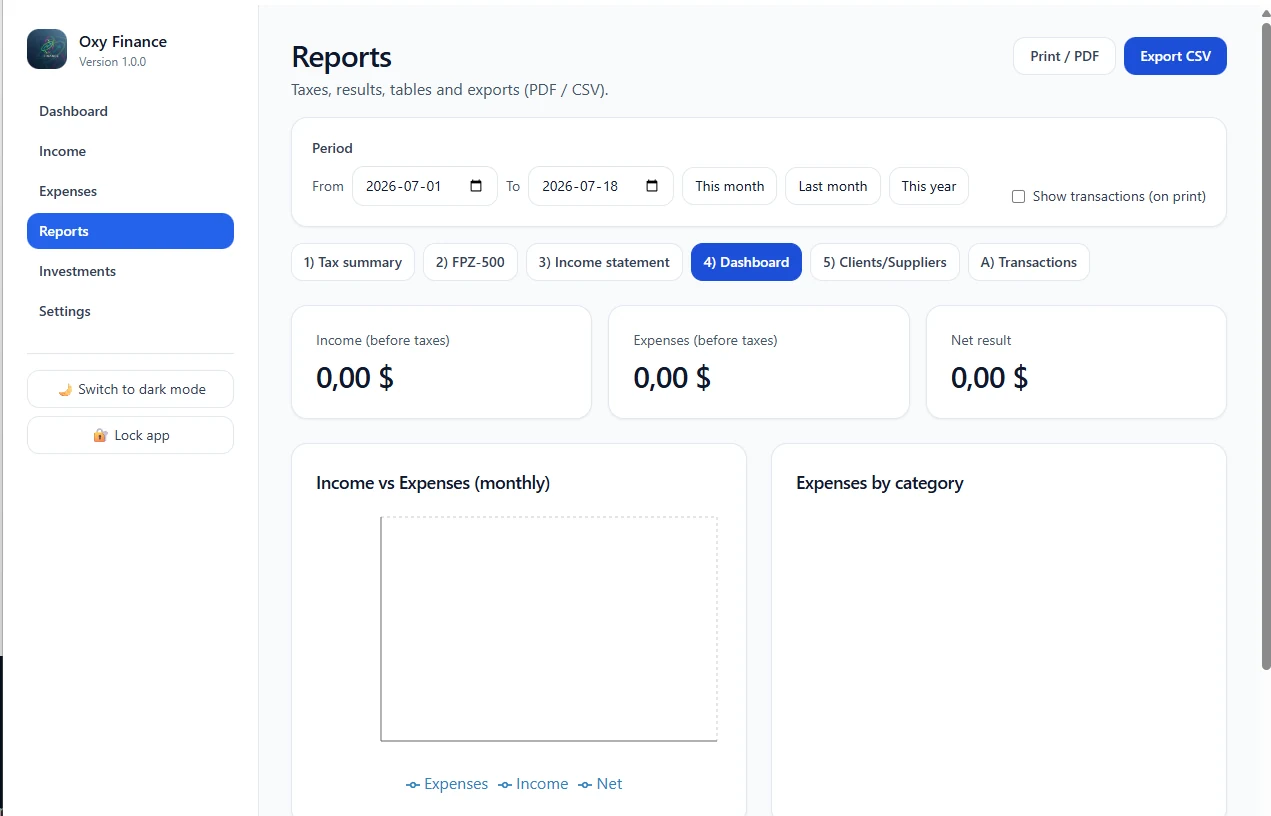
Reports provide detailed views of financial activity and support tax-information preparation.
| Report | Contents |
|---|---|
| Tax summary | GST and QST collected and paid. |
| FPZ-500 | Structured information for Quebec form preparation. |
| Income statement | Income, expenses and net result. |
| Dashboard | Income versus expenses and category breakdowns. |
| Clients/Suppliers | Rankings based on invoicing and expenses. |
| Transactions | Detailed entries for the selected period. |
Notice: reports are informational. Oxy Finance does not provide accounting, tax, legal or financial advice.
Backup and import
Create a backup before important updates, device changes or any operation that could replace data.
Export a backup
- Open Settings → Backup & import.
- Select Export data.
- Choose the destination folder.
- Store the file safely.
Import a backup
- Open Settings → Backup & import.
- Select Import data.
- Choose the backup file.
- Confirm replacement of current data.
- Verify the file after every export.
- Do not share backups containing sensitive data.
- Keep multiple copies on different storage media.
Security and support
- Back up data regularly.
- Protect your Windows session with a password.
- Use a strong Microsoft account password.
- Avoid public or shared devices.
- Keep Windows and Oxy Finance updated.
Need help?
Include your Windows version, Oxy Finance version, the steps performed and the displayed message.